Windows 11 users have four ways to update GPU drivers
Engadget outlines update options through Windows tools, manufacturer software and manual downloads, while warning that new drivers can sometimes create performance problems.
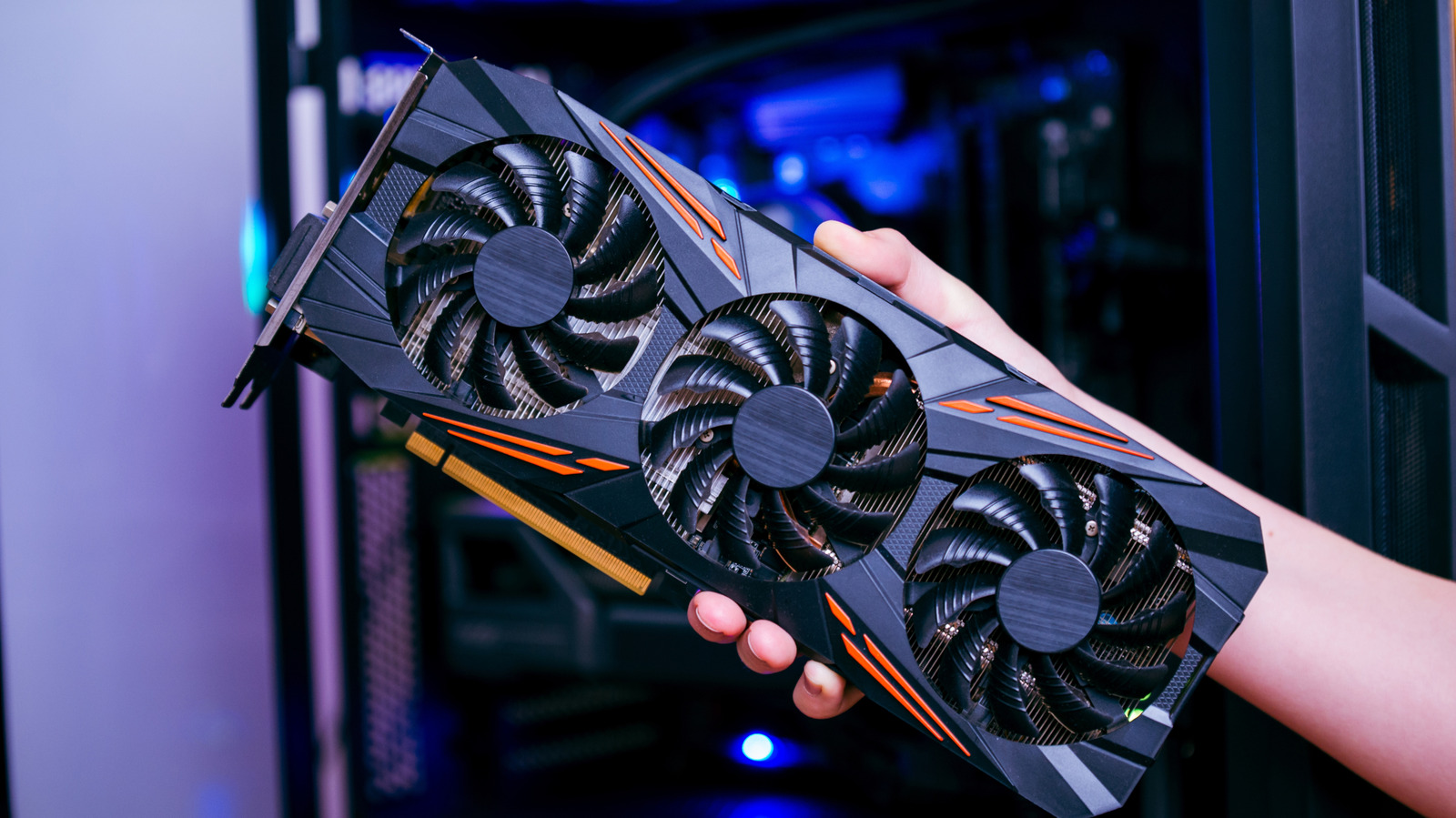
Windows 11 users can update graphics processing unit (GPU) drivers through Windows Update, Device Manager, manufacturer companion software or manual downloads, according to a guide published by Engadget.
The simplest option is to open Settings, select Windows Update and check for updates. Users can also open Device Manager, expand Display adapters, select their GPU and choose the automatic driver search option.
Windows Update may install a driver that is several releases behind the latest version available from the manufacturer. For newer performance improvements and bug fixes, Engadget recommends checking software provided by AMD, NVIDIA or Intel.
The available companion applications include NVIDIA App, AMD Software: Adrenalin Edition and Intel Graphics Software. These tools can detect the installed GPU and identify available updates. Display flickering during installation can be normal, and restarting the computer afterwards may be advisable.
Drivers can also be downloaded manually from the official AMD, NVIDIA or Intel website. Users seeking a specific version should confirm the GPU model and ensure the download comes from the manufacturer’s site.
Keeping drivers current may improve game performance or resolve bugs, but results depend on the hardware, game and driver version. Some new releases can cause crashes or reduced performance, making an older driver a useful fallback.