How to exit Android Safe Mode: A practical guide for stuck devices
Engadget’s latest technical guide outlines two straightforward methods for disabling the troubleshooting state that disables third-party applications and activates Airplane Mode.
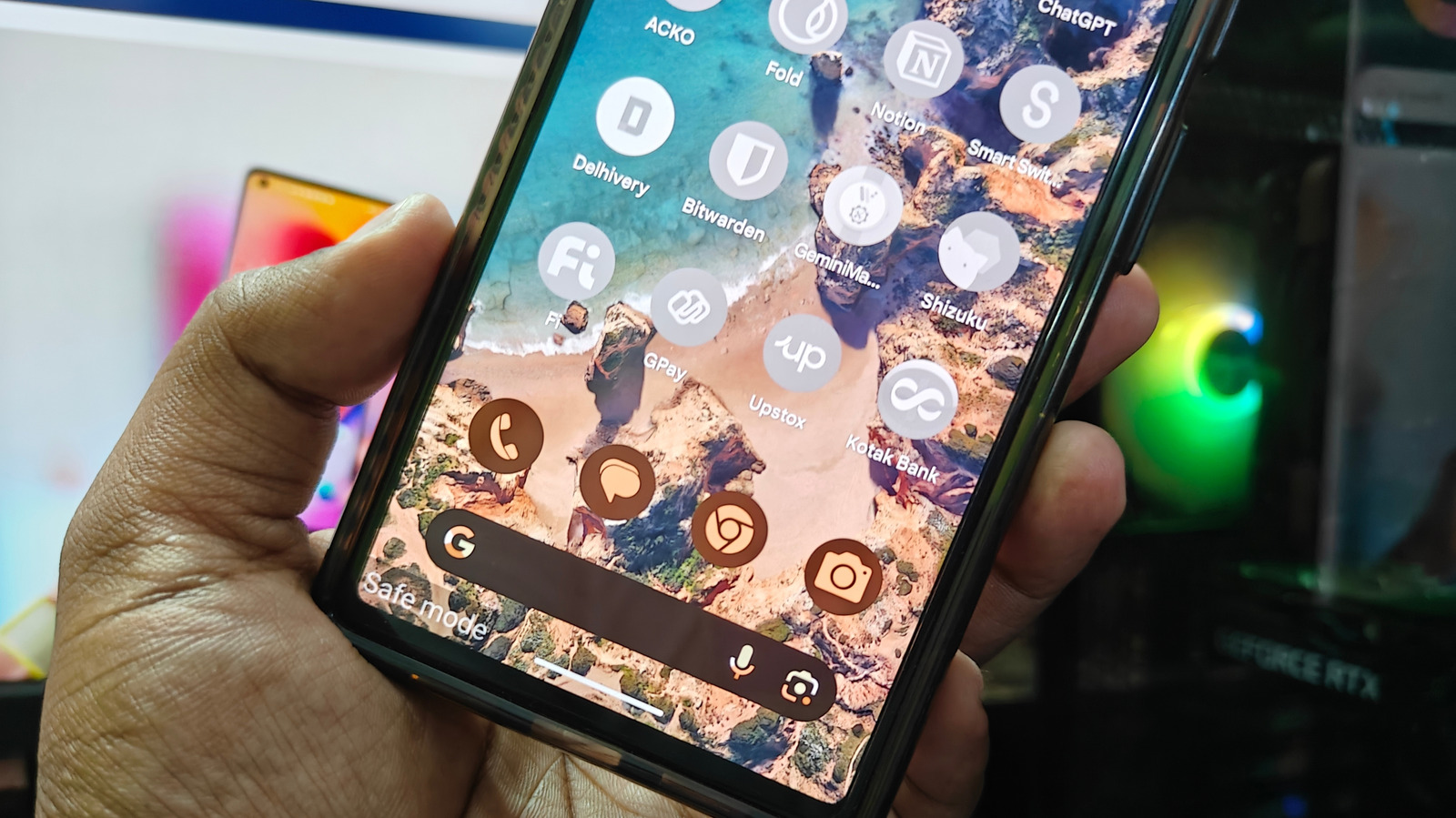
A new technical guide from Engadget details how Android users can exit Safe Mode, a built-in troubleshooting state designed to isolate device issues. When activated, Safe Mode disables all third-party applications and, according to the guide, activates Airplane Mode to help users identify the source of problems such as lag, battery drain, or potential malware.
The guide notes that while Safe Mode is a useful utility, its activation process is simple enough to be triggered accidentally. Users can enter the mode by holding the Power Off button in the power options menu, a step that is prone to error if the user is not intending to troubleshoot. This can lead to a frustrating experience where all apps appear greyed out during normal usage.
To resolve the issue, Engadget outlines two primary methods for exiting the state. The first involves accessing the power options screen, either by holding down the power button or the power and volume down button depending on the specific Android model, and restarting the device. Once the phone reboots, Safe Mode will be turned off.
Alternatively, users can swipe down from the left side of the screen to access the Notification Menu. Within this panel, a notification indicating the phone is in Safe Mode will appear. Tapping this notification provides an option to turn the mode off directly.
The guide also advises users to check their connectivity settings after exiting Safe Mode. Airplane Mode may remain active even after the troubleshooting state is disabled, indicated by an airplane icon in the status bar. To restore connectivity, users should swipe down from the right portion of the screen to access the Quick Settings menu and tap the airplane icon to turn it off.
While Safe Mode is the primary focus, the guide briefly mentions Google Play Protect as another Android tool that can sometimes cause frustrating phone limitations. However, like Safe Mode, it is described as an easy fix for users who find their device performance restricted.