Engadget outlines methods for resetting ASUS routers to factory settings
The technology publication details how users can restore default configurations via web portals, mobile apps, or physical buttons, while warning of data loss risks.
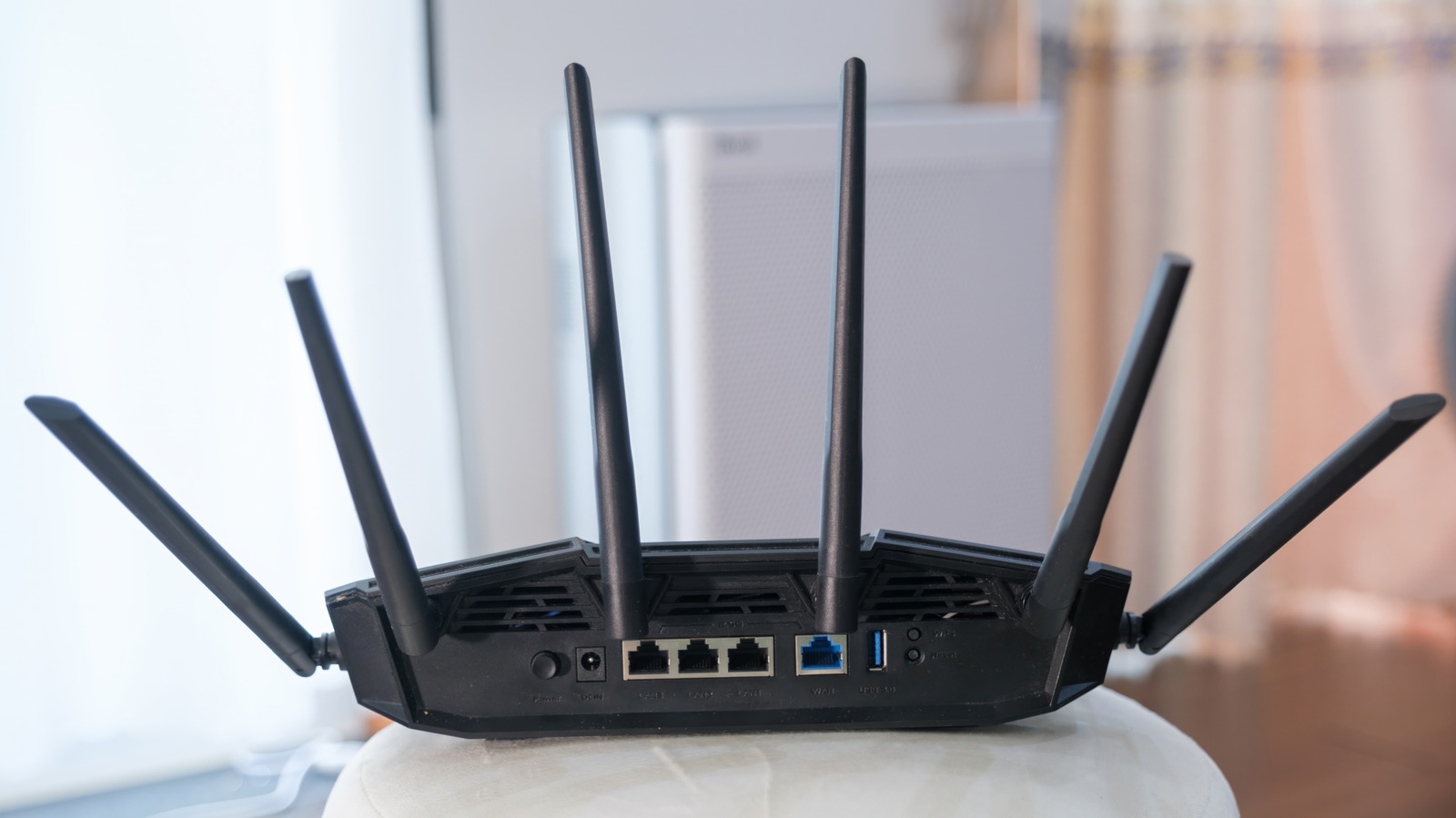
Engadget has published a comprehensive guide detailing how to reset ASUS routers to their factory settings, addressing common technical issues in smart home setups. The article outlines two primary reset methods: via the web portal or mobile application, and manually using the physical reset button. Users are advised to back up account details and custom settings, such as AiProtection logs and Traffic Analyzer data, as the process erases all information.
Routers are central to modern connectivity, making technical problems particularly frustrating for users. Whether dealing with forgotten passwords, lost signals, or general troubleshooting, a reset can serve as a catch-all solution. However, the process is not without risk, as it permanently erases all custom settings and data logs. Engadget notes that ASUS recommends attempting standard reboot procedures before proceeding to a hard factory reset.
For users with access to their router’s settings, the guide suggests using the online portal at http://www.asusrouter.com or the router’s LAN IP address. Once logged in, users navigate to the Administration tab under Advanced Settings and select Restore/Save/Upload Setting. Alternatively, the ASUS Router App or ExpertWiFi mobile application allows users to reset the device directly from their phones by selecting System reset to factory default.
Manual resets are recommended for those unable to access the WEB GUI portal due to forgotten credentials or firmware failures. This involves locating the small RESET button on the back of the device and holding it for five to 10 seconds until the power LED flashes. Users must then wait for the signal LEDs to stabilise before reconfiguring the router. Engadget warns against shutting off the router or browser during this process to avoid potential issues.
Default login credentials are typically found on a label or sticker on the back or bottom of the router. If users have changed these credentials previously, they will need to use the new details. For specific hard reset procedures, which vary by model with at least eight different methods available, Engadget directs users to the ASUS support page. The publication also advises contacting the internet service provider if users are unsure of their account information before proceeding.