Engadget outlines macOS tweaks to extend MacBook battery life
A new technical guide from Engadget details specific system adjustments to maximise MacBook uptime, though experts caution that significant gains are unlikely without hardware replacement.
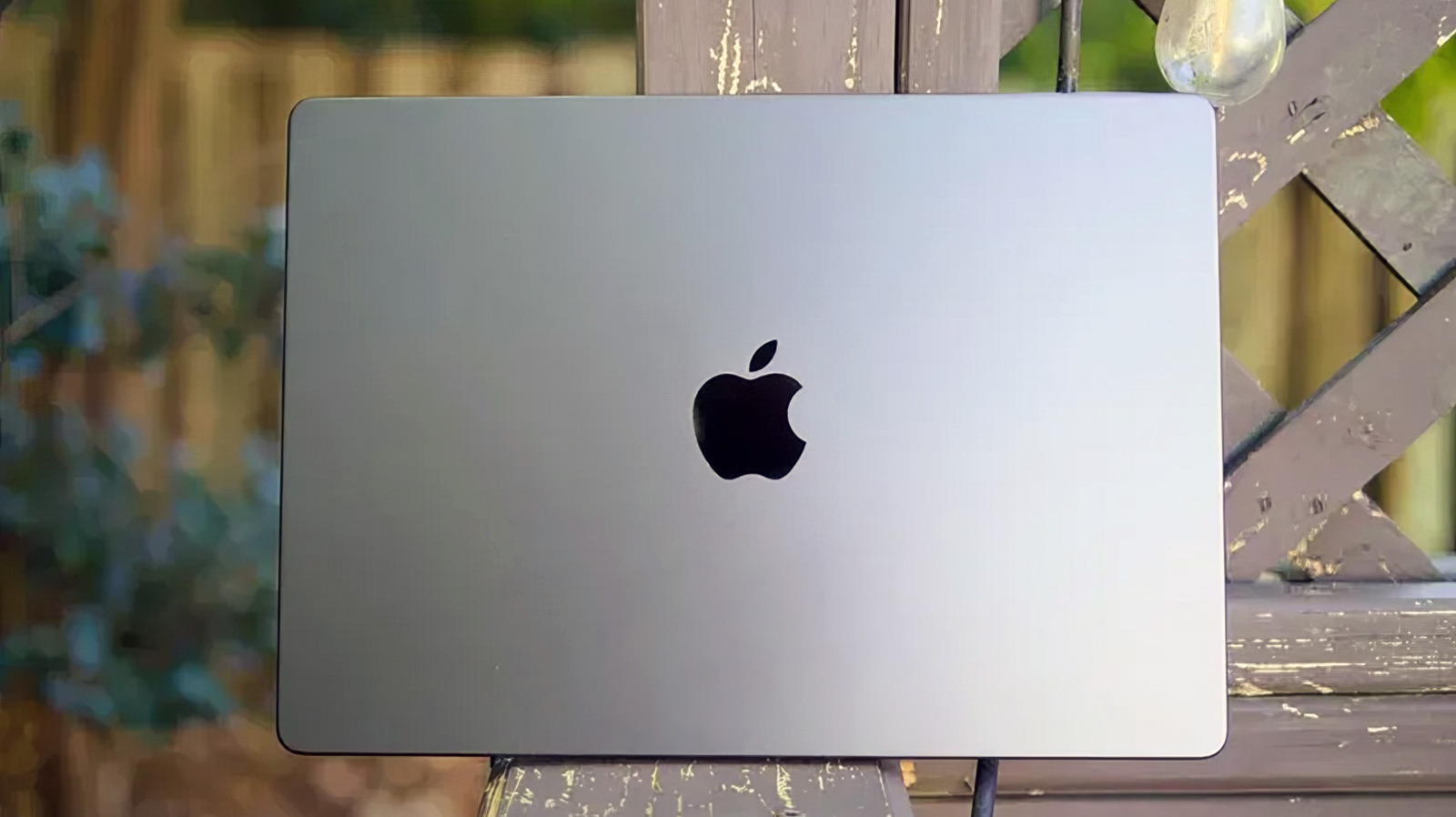
Engadget has published a comprehensive guide outlining settings adjustments for macOS designed to extend MacBook battery life. The recommendations include enabling Low Power Mode, optimising charging to cap at 80 per cent, dimming the display, disabling auto-play videos, and managing background app activity via Activity Monitor and System Settings.
Before adjusting software configurations, the guide advises users to check the baseline battery health in System Settings. Apple recommends replacing a MacBook’s battery if the capacity falls below 80 per cent, at which point a service warning appears and a Genius Bar appointment is advised. For devices with healthy batteries, enabling 'Optimize Battery Charging' in the Battery settings caps the charge at 80 per cent, a measure intended to extend the battery’s overall lifespan rather than providing immediate daily life improvements.
Identified as the most effective single setting for extending battery life, particularly for devices with aged batteries, Low Power Mode is a critical adjustment. Users can switch the Energy Mode to Low Power when on battery, ensuring the device remains in energy-saving mode even with a substantial charge. The guide notes that default settings are sufficient for most users, as macOS generally manages power consumption automatically, but these tweaks can help squeeze out additional uptime for those needing to stretch their battery further.
Specific browser configurations are also highlighted, with Safari recommended over Chrome for its generally superior power efficiency. In Safari, users can prevent websites from automatically starting videos by adjusting Auto-Play settings. For Chrome users, enabling Energy Saver and disabling Preload pages in the Performance settings can reduce background processes and limit visual effects that drain power. Additionally, macOS offers a setting to automatically turn off auto-play for animated images, located under Accessibility and Motion.
Other recommended adjustments include dimming the display, setting the lock screen to turn off after a short interval of inactivity, and optimising video streaming settings to play HDR content in SDR while unplugged. Users are also advised to audit background app activity in System Settings and ensure 'Wake for network access' is set to 'Only on Power Adapter' to prevent the device from waking while unplugged. The guide cautions that these tweaks are unlikely to double battery life and warns that indiscriminate shutdowns of background processes may break app functionality.