How to find and clear storage hogs on a Windows PC
Engadget outlines Windows tools and third-party utilities for identifying large files, removing unused software and managing storage safely.
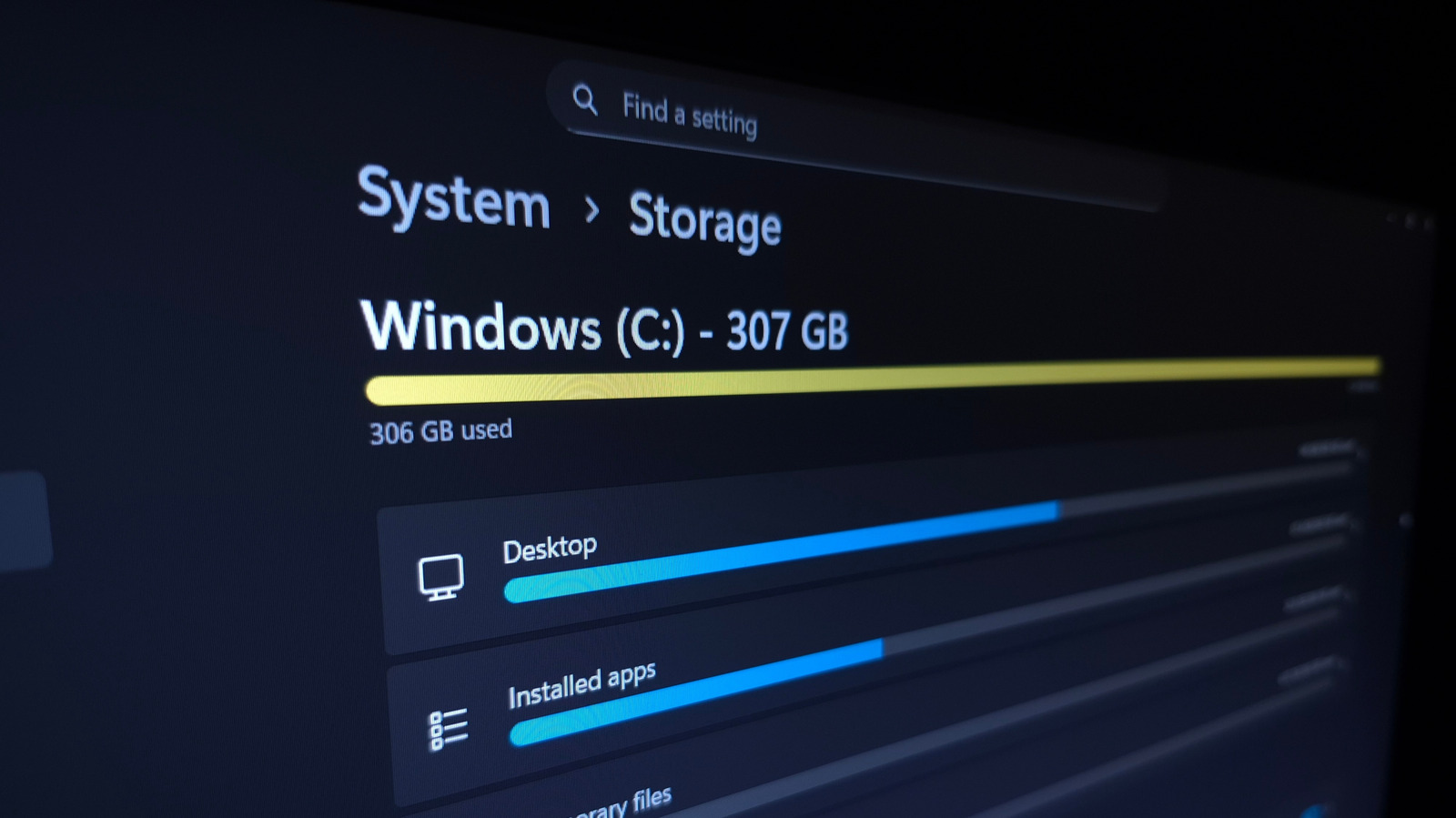
Windows users can identify what is consuming space by opening Settings, then selecting System > Storage. The built-in tool shows usage on the main drive by category and links to relevant management options.
Engadget recommends starting with Installed apps, sorting them by size and uninstalling software that is no longer used. Programs should be removed through Windows rather than by deleting files directly from Program Files. Where supported, some applications can also be moved to another drive.
Temporary Files can offer relatively straightforward savings, although Downloads and the Recycle Bin should be reviewed before deletion. Emptying the Recycle Bin permanently removes its contents. Storage used on other drives can be reviewed through Advanced storage settings.
For a more detailed view of individual folders, Engadget highlights TreeSize Free, which can scan a drive and display its largest directories. The utility can help locate personal files, application caches and other large folders, while dupeGuru can identify duplicate files. The article cautions against deleting application files directly.
More advanced options include reducing or deleting system restore points, which limits recovery options, and disabling hibernation with the command “powercfg /hibernate off”. Hibernation can be restored with the corresponding “on” command.
Users can also move files to another drive, use cloud storage or add external storage. Engadget advises keeping multiple backups of important data. For ongoing maintenance, Windows Storage Sense can automatically remove temporary files and manage user content, but its Downloads and Recycle Bin settings should be configured carefully.