Engadget outlines optimal file system choices for formatting USB drives on Windows
New analysis from Engadget details how to properly format storage devices to resolve compatibility issues and optimise performance across different operating systems.
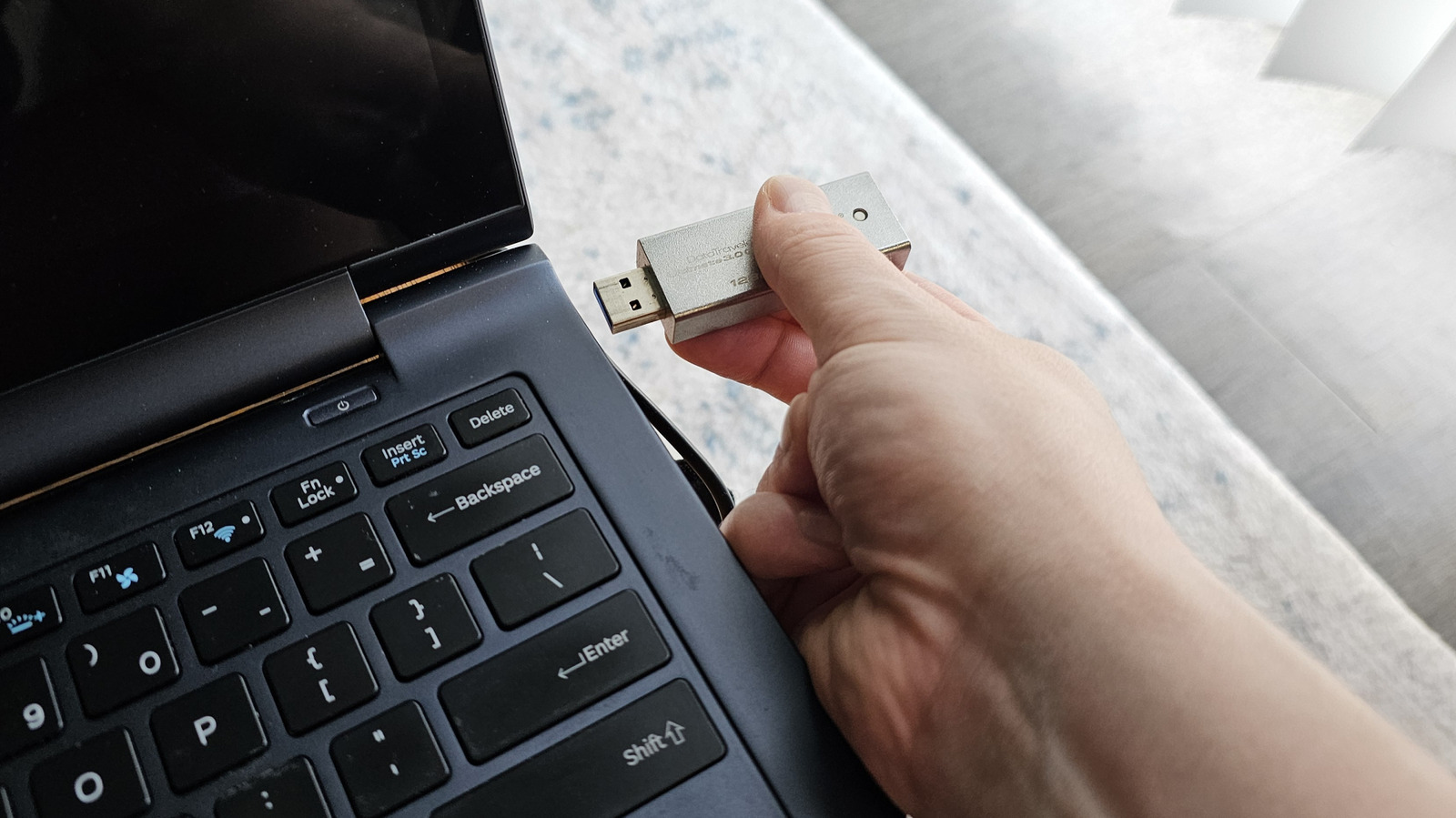
Engadget has published a comprehensive guide on formatting USB drives within the Windows environment, emphasising that the process extends beyond simple data deletion. The publication notes that formatting involves wiping data, overwriting sectors to prevent recovery, and scanning for bad sectors to restore a drive to a functional state. This procedure is recommended for both new devices to remove factory configurations and existing drives to resolve compatibility issues or corrupted data.
The guide highlights that many USB drives, including those from manufacturers such as SanDisk and Kingston, are pre-configured with the FAT32 file system. While FAT32 offers broad compatibility with older hardware like car stereos or legacy printers, it is limited by its inability to handle individual files larger than 4GB and is more prone to fragmentation. The publication also notes that Windows 11 may exhibit compatibility issues with FAT32 depending on the specific use case, rendering it less suitable for modern workflows.
For users requiring cross-platform compatibility, Engadget recommends the exFAT file system. This format supports files larger than 4GB and is compatible with a wide range of operating systems, including macOS, Linux, Android, and iOS. The guide suggests exFAT as the de facto choice for portable storage devices intended for use with Android phones or for storing large media files such as 4K videos and compressed archives.
For environments where the drive will be used exclusively with Windows systems, NTFS is the preferred option. This file system supports advanced features such as partitioning and encryption, which are standard for Windows internal drives. However, the guide advises against using NTFS if there is any likelihood the drive will be connected to non-Windows devices, as compatibility is not guaranteed across other operating systems.
The technical procedure involves using Windows Explorer to right-click the target drive and selecting the Format option. Users are advised to ensure no programs are actively using the drive before proceeding. The guide suggests adjusting the file allocation unit size based on the intended content: higher values for large files like games, and lower values for numerous small files such as text notes. The process typically takes from a few seconds to several minutes, depending on the drive’s capacity and fill level.