Engadget details how to restore and hide apps in Android Auto
Missing Android Auto apps may return after users open or update them on their phone, while launcher settings control which compatible apps appear.
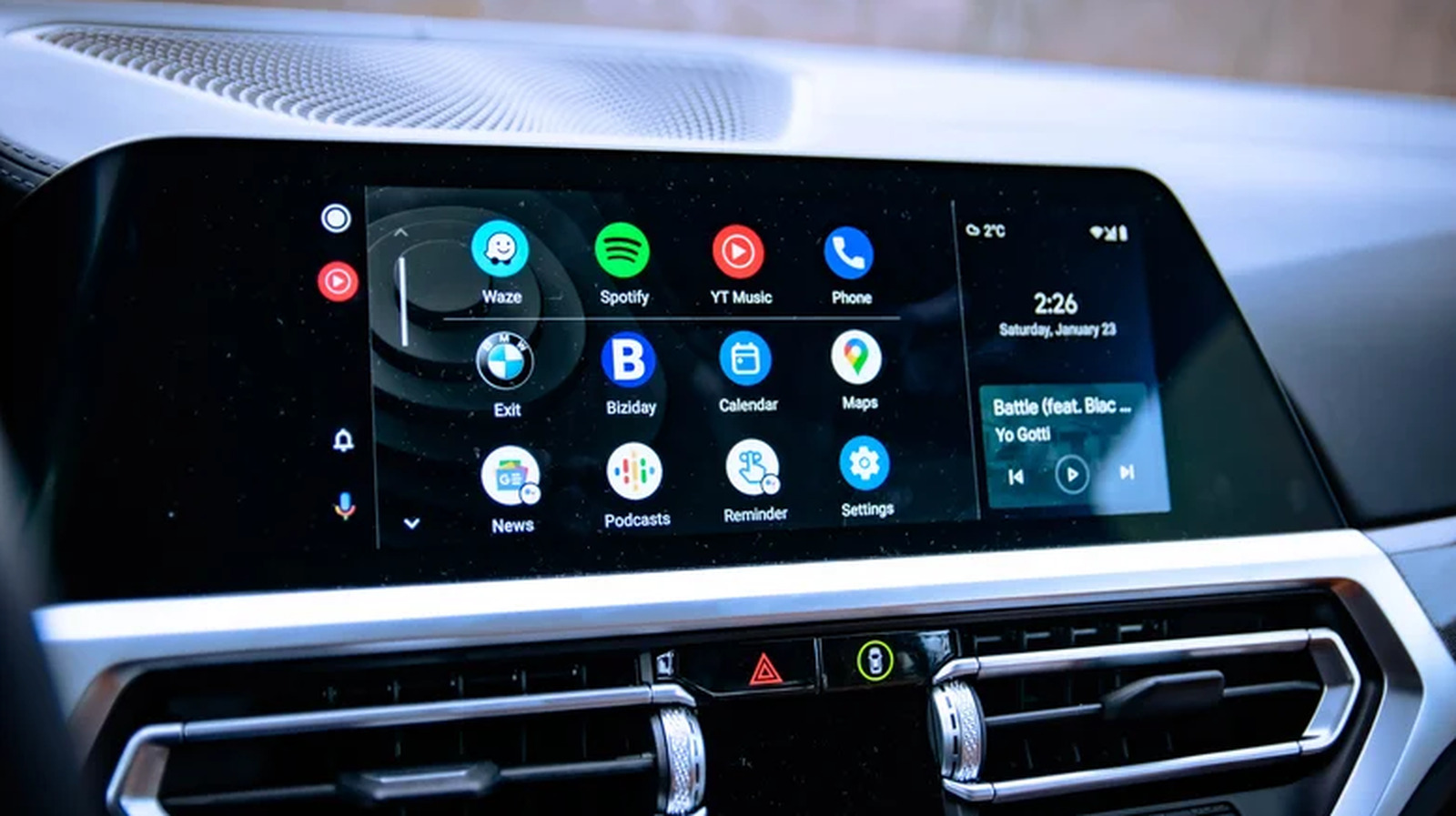
Engadget has outlined ways for Android Auto users to restore missing apps and control which ones appear in the vehicle’s launcher.
A missing app may have been disabled by Android’s battery or background-usage settings, particularly on Samsung phones. Engadget says Android can automatically disable apps that have not been opened recently, removing them from the Android Auto launcher while leaving them installed on the phone.
To restore an app, users should find and launch it on their phone, install any available update and then reconnect to Android Auto. The app should appear in the launcher the next time it is opened, according to Engadget.
Users can also adjust the launcher through Settings > Connected devices > Android Auto > Customize launcher. The available options allow compatible apps to be shown or removed from the launcher, although menu names may vary by phone manufacturer and Android version.
Engadget notes that Android Auto does not provide a separate in-car command to hide an app. Only apps designed to support the platform can appear, including messaging services, Google Maps and Spotify; games and Netflix are not eligible.